First diagnostic steps
Before digging deeper, check these four points — they resolve the majority of cases:
- Menu saved? Changes in the menu editor only take effect after Save Menu.
- Cache cleared? Clear the browser cache (Ctrl+F5) and any page cache plugin (WP Rocket, LiteSpeed etc.).
- Activation mode checked?
Settings → SuperNav → Activation mode— when in doubt, use "All menus". - Plugin version up to date? This page documents Core 2.10.56. Update older versions first.
document.querySelectorAll('.lmm-has-mega').length — the result must be > 0,
otherwise the panel is not active on the menu item at all.
Panel does not open
Symptom: hovering/clicking the menu item shows no mega panel.
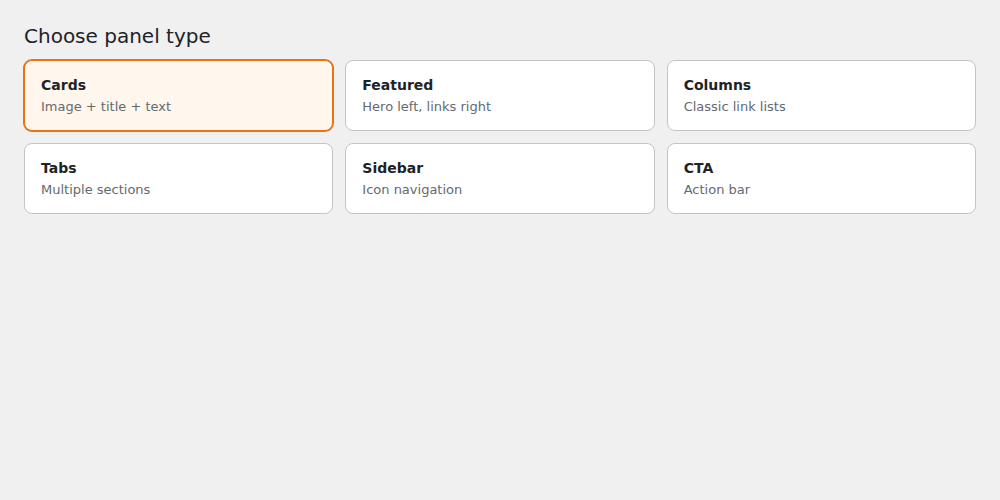
- Panel type set to "No mega panel"? → Change it to "Columns with icons & descriptions" (or another type).
- Menu saved after the change?
- Browser console:
document.querySelectorAll('.lmm-has-mega').length— must be> 0. - Plugin settings: set the activation mode to "All menus".
- JSON empty or invalid? A panel without valid columns is not rendered — see JSON errors.
Panel flickers on hover
Symptom: the panel opens and closes rapidly.
- Increase the close delay:
Settings → SuperNav → Close delay → 300 - Check the theme CSS: does the theme set
position: static !importanton<li>elements? - Add the theme fix CSS to
style.css— see theme compatibility in the documentation.
Icons not visible
Symptom: empty squares or nothing at all instead of Dashicons.
On pages that render without wp_head() (e.g. standalone landing templates), the Dashicons are missing.
They must be included via the theme filter:
add_filter('taxbot_landing_lmm_head_html', function (string $html): string {
    // Dashicons for SuperNav icons
    $dashicons_url = includes_url('css/dashicons.min.css');
    $ver           = get_bloginfo('version');
    $html .= '<link rel="stylesheet" id="dashicons-css" href="'
           . esc_url($dashicons_url) . '?ver=' . esc_attr($ver)
           . '" media="all" />' . "\n";
    return $html;
}, 5);
Test in the browser console:
document.querySelector('link[href*="dashicons"]') ? 'Dashicons loaded' : 'missing'On regular WordPress pages the plugin loads the Dashicons automatically.
JSON errors (red marker in the editor)
Symptom: the JSON field shows a red error marker, the panel stays empty.
- Only use straight double quotes
"— no single quotes'and no typographic quotes“ ” « ». - No trailing comma after the last element in arrays and objects.
- Use the
{ } Formatbutton — it shows the exact error position. - When copying from Word/email: paste the text into a plain text editor first (removes smart quotes).
- Or simply use our JSON tester — it finds syntax and field errors instantly.
".
Badge does not appear
Symptom: the "New" badge on an item is not displayed.
Set at least "badge" (text). "badge_url" is optional and makes the badge clickable.
{
  "label": "Invoices",
  "url": "/invoices",
  "badge": "New",
  "badge_url": "/invoices/new"
}
Colors not applied
Symptom: configured colors do not show up in the frontend.
- Check the priority: item JSON > column JSON > 🎨 tab > plugin settings. A higher level overrides the lower one.
- Write hex colors correctly with
#:"#ef4444", not"ef4444". - Clear the page cache — color values end up in the rendered HTML.
Details: configuring colors in the documentation.
Panel too far right or left
Symptom: the panel extends beyond the screen edge.
The plugin detects edge overflow automatically. If needed, force it manually:
/* Always left-aligned */
.lmm-has-mega .lmm-mega-panel { left: 0 !important; right: auto !important; }

/* Always right-aligned */
.lmm-has-mega .lmm-mega-panel { left: auto !important; right: 0 !important; }
Theme conflicts
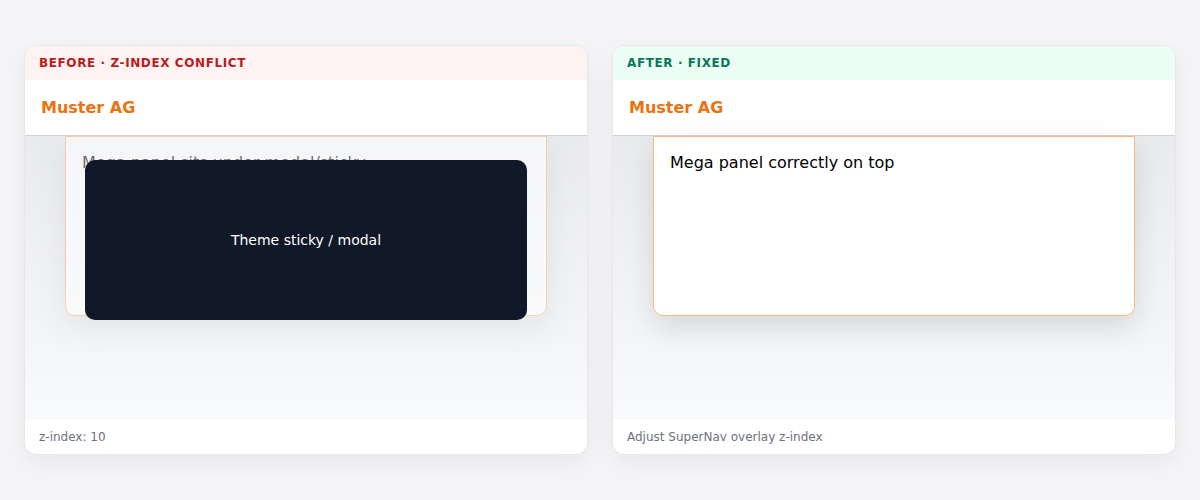
Symptom: layout breaks, the panel appears in the wrong place or behind other elements.
z-indexconflict: theme header elements overlap the panel. Test CSS:.lmm-mega-panel { z-index: 99999 !important; }overflow: hiddenon header containers prevents display — set it tovisible.- For documented theme fixes see theme compatibility.
Dimming overlay does not appear
Symptom: Overlay is enabled in settings, but the page stays bright.
- Most common cause: theme CSS overrides
.lmm-overlaywithbackground: … !importantor hides it on desktop withdisplay: none(also in static HTML landing snapshots). - DevTools: does opening a panel add
lmm-visibleto.lmm-overlay? Which computedbackgroundwins overvar(--lmm-overlay-color)? - Check open/close fade durations and opacity under
Settings → SuperNav(0% opacity = invisible).
style.css, sync CSS, embedded landing HTML). Check every match.
Safe mode looks wrong
Symptom: Everything is black/white or all panels are open at once.
- Safe mode forces readable contrast and shows all mega panels — for debugging only.
- Use the banner at the bottom of the page to turn it off. It applies to all visitors, not just admins.
Editor tabs overflow
Symptom: The mega panel editor tab bar is cut off on the right.
- Affects older versions before the wrap fix — update to Core 2.10.35 or newer.
Translations not applied
Symptom: German appears despite EN/FR/IT texts being entered.
- Check the URL parameter: the language is controlled via
?lang=en/?lang=fr/?lang=it. - After every menu change, click Load again in the translation module — new JSON texts must be re-scanned.
- Mind the import mode: Merge keeps existing keys, Replace overwrites everything.
- Menu titles (top level) are translated separately in the 🌐 field of the menu editor, not in the module.
- AI translation needs your own OpenRouter API key in the language config — without it, only manual/Excel/CSV works.
Workflow in detail: multilingual (i18n).
Mobile accordion: large gap or floating panel
Symptom: in the phone drawer a mega item expands with empty space below — or the panel sits narrow beside the link and looks clipped.
- Fixed in Core 2.10.44 (panel under the link instead of a flex column) and 2.10.45 (link no longer uses
height:100%of the expanded row). - Also from 2.10.43: drawer is reparented to
<body>so themebackdrop-filter/transformcannot shrink it. - Update to Core 2.10.56, then clear browser and page cache.
After update: old appearance
Symptom: after a plugin update the panel still looks like before.
- Hard-refresh the browser cache (Ctrl+F5).
- Clear the page cache plugin (all pages).
- Purge the CDN cache (Cloudflare etc.) — CSS/JS assets are versioned, but HTML may be cached.
- With optimization plugins (Autoptimize, WP Rocket): regenerate the aggregated CSS/JS files.
Still having problems?
If none of the above helps, please collect the following information and contact support:
- Plugin version (Core, Pro if applicable) — see
Plugins → Installed Plugins - WordPress version and active theme
- Browser console output (F12 → Console) when opening the menu
- The JSON of the affected menu item (copy/paste)
Contact support To the documentation